Editorial note: This guide covers player configuration and troubleshooting for viewing sources you are authorized to use. It does not provide playlists, accounts, channels or access to third-party content.
Quick answer
To install an IPTV player on Firestick safely, begin with the official app store and verify the developer before considering sideloading. Use the device's official app store whenever the player is available there. Sideloading should be the exception, not the default. Before installation, check free storage, install pending system updates, and record the exact login format supplied to you.
Why this guide takes a diagnostic approach
Most failed Firestick setups are not caused by the installation button. Low storage, an old operating system, an unverified APK, or a player designed for touchscreens can make a technically successful installation unusable from the sofa.
Record the device model, operating-system version, player version, login format and exact error before changing settings. That baseline is what turns a collection of tips into a repeatable diagnosis.
Recommended setup sequence

1. Update the device
Install pending Fire OS or Android TV updates, restart, and confirm there is enough free storage for installation and temporary files.
2. Prefer the official store
Use the Amazon Appstore or Google Play listing when available. Sideload only from a developer-controlled source.
3. Verify television usability
Choose a remote-first app. A phone interface may install successfully but remain awkward or impossible to operate.
4. Add the correct login type
Keep M3U, Xtream Codes and provider-specific credentials separate.
5. Let the first refresh finish
A large playlist and EPG can take time. Repeatedly closing the app may leave incomplete local data.
Storage, memory and remote-control limits
Firestick and inexpensive Android TV devices have limited working memory. A large playlist, full EPG and extensive on-demand catalogue can make an app close during the first refresh even when installation succeeded. Clear cache, remove unused apps and test a smaller profile before performing a factory reset.
A phone-oriented APK may accept the login but leave controls unreachable with a television remote. Prefer a TV-first player. Mouse-toggle utilities can help with a one-time setup, but they are not a substitute for daily remote navigation.
Decoder and network baseline
Use one known item to compare hardware and software decoding. For network testing, keep the player unchanged and compare Ethernet, 5 GHz Wi-Fi and a phone hotspot. This distinguishes radio interference and router behavior from player compatibility.
Detailed setup and platform notes

For Android Phones, Android TV Boxes, Formuler, NVIDIA Shield, and More
This step-by-step guide will help you install and set up IPTV apps on Android-based devices, including:
- Amazon Firestick (with similar process)
- Android smartphones & tablets
- Android TV boxes (e.g., X96, Mi Box)
- Formuler (Z10, Z11 series, etc.)
- NVIDIA Shield
Step 1: Install the Downloader App
Before you can install IPTV apps, you need the Downloader app. This tool lets you download and install apps using short codes or direct URLs.
Option 1: From Google Play StoreSearch for “Downloader by AFTVnews” in the Play Store and install it.
Option 2: Manual Installation (For devices without Google Play)If your device doesn’t have access to Google Play (e.g., some Android TV boxes or sideloaded systems), follow these steps:
- Open the device settings and review the Security or Privacy controls.
- If sideloading is genuinely required, grant installation permission only to the app you are using for that installation.
- Prefer the device’s official app store and the player’s verified developer website. Avoid copied APK files, unexplained short links and third-party download codes.
- Remove the temporary installation permission after setup.
Once installed, open Downloader and enter the codes provided below to download your preferred IPTV player.
Step 2: Choose and Install an IPTV App
You can choose from the apps below depending on your device type and preferences.
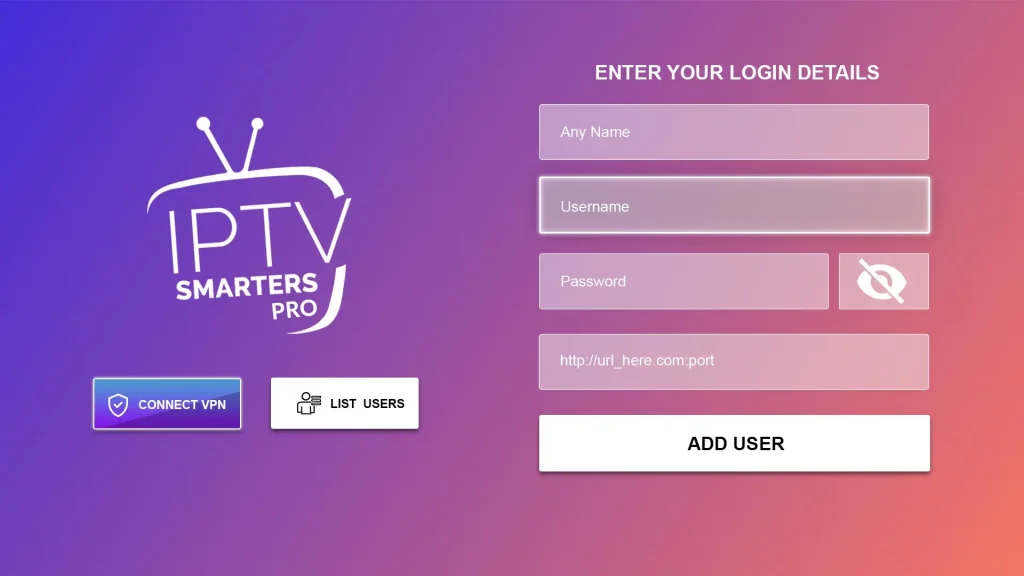
1. IPTV Smarters Pro
- Devices: Android phones, tablets and many Android TV devices.
- Login formats: commonly supports M3U and Xtream Codes, depending on the app edition.
- Best practice: verify the developer name and current download source before installing.
- Useful for: users who want a straightforward profile-based player rather than a highly customised TV guide.
2. TiviMate (Official)
- Source: use the official Google Play listing and verify the developer name.
- Devices: designed primarily for Android TV interfaces and remote control.
- Features: television-style EPG navigation, favourites and playlist organisation.
- Limit: it is a player, not a source of television content, and its licensing model can change.
3. M-IBO
Some providers distribute a customised player that accepts only a username and password. Treat these apps separately from general-purpose players: confirm who maintains the app, what permissions it requests and whether you can move your profile to another player later.
4. M-TIVI
Do not install modified or unofficial versions of premium players. They can be outdated, may request unnecessary permissions and can expose playlist credentials. Use the official store listing or the developer’s verified distribution channel instead.
Step 3: Configure Your IPTV App
After installation, follow the steps below to log in to your IPTV account. We’ll show you how to do it in two different apps: IPTV Smarters Pro and M-IBO.
IPTV Smarters Pro – Setup Guide
- Open the IPTV Smarters Pro app
- Tap on "Login with Xtream Codes API."
- Enter the login credentials provided to you: Any name (e.g., NEXUS) Server URL Username Password
- Click “Add User”
- Your playlist will load automatically
M-IBO – Setup Guide
- Open the M-IBO app
- On the first screen, enter your credentials: Playlist name Username Password
- Tap "Update Playlist," then tap "Connect"
- Wait for channels and categories to load
📌 Note: If login fails, double-check your credentials or confirm with support that M-IBO is supported for your server.
Notes
Get the configured service running on Firestick, Android TV, NVIDIA Shield, Formuler, or your phone — quickly and easily.
Use Downloader by AFTVnews to sideload IPTV player apps onto your device. Choose the method that works best for you.
Enter one of these codes inside Downloader to install your player. For other apps like XCPlayer, visit DownloaderCodes.com.
Open Smarters Pro, select Xtream Codes API, then fill in your credentials from the welcome email or support team.
All done! Your channels will load automatically after login. If nothing appears, double-check your credentials or contact support.
FAQ
Common questions about Firestick, Android TV, and mobile setup.
Need Support?
Get your credentials or troubleshooting help from our team.
Diagnostic table
| What you see | Best first test |
|---|---|
| The APK will not install | Delete the partial download, confirm the CPU-compatible build, and check free storage. |
| The app closes after login | Test a smaller playlist or another player; the device may be running out of memory while parsing categories and EPG data. |
| The remote cannot reach controls | Choose a TV-first player or use a temporary mouse-toggle tool only for setup. |
| Video buffers on every category | Compare Ethernet, 5 GHz Wi-Fi and a phone hotspot before blaming the player. |
How to interpret each symptom
The APK will not install
Delete the partial download, confirm the CPU-compatible build, and check free storage. Keep the credentials unchanged during this comparison. Repeat the result once, then reverse the change to confirm that the improvement was not temporary.
The app closes after login
Test a smaller playlist or another player; the device may be running out of memory while parsing categories and EPG data. Keep the credentials unchanged during this comparison. Repeat the result once, then reverse the change to confirm that the improvement was not temporary.
The remote cannot reach controls
Choose a TV-first player or use a temporary mouse-toggle tool only for setup. Keep the credentials unchanged during this comparison. Repeat the result once, then reverse the change to confirm that the improvement was not temporary.
Video buffers on every category
Compare Ethernet, 5 GHz Wi-Fi and a phone hotspot before blaming the player. Keep the credentials unchanged during this comparison. Repeat the result once, then reverse the change to confirm that the improvement was not temporary.
Use controlled comparisons
Same account, different network
Compare home internet with a phone hotspot while keeping the device and player unchanged. A different result points toward DNS, router policy, ISP routing or VPN behavior rather than the login itself.
Same account, different player
Keep the device and network unchanged. If only one maintained player fails, investigate its cache, decoder, permissions and update status before changing the account.
Same account, different device
Memory, codec support, operating-system age and background restrictions can make the same source behave differently. A second-device test helps identify those limits.
Security and privacy
Treat playlist URLs, portal addresses and login details like passwords. Redact them from screenshots. Avoid unknown APK mirrors, unexplained download codes and applications requesting permissions unrelated to playback.
When to stop changing settings
Stop resetting the device when the same error repeats on multiple devices and networks. Collect the time, redacted error, player version and comparison results. That evidence is more useful than a list of random changes.
Frequently asked questions
Should I reinstall the player first?
No. First identify whether the failure occurs during installation, login, data refresh or playback. Reinstallation cannot repair an expired URL, routing problem or unsupported codec.
Does a VPN always fix playback or login errors?
No. It is a comparison tool, not a guaranteed solution. A VPN can improve one route while adding congestion or brief disconnects on another.
Why does the same login work on another device?
The devices may use different decoders, DNS paths, memory limits, player versions or operating-system permissions. Keep as many variables identical as possible.
Should I clear cache or app data?
Clear cache first. Clearing app data removes saved profiles and settings, so record the login method before using it.
What can I safely send to support?
Share the device, operating system, player version, error text, time and test results. Do not send passwords, full URLs or device identifiers in public channels.
Final recommendation
Use the device's official app store whenever the player is available there. Sideloading should be the exception, not the default. Before installation, check free storage, install pending system updates, and record the exact login format supplied to you.
Change one variable at a time, repeat the result and keep a short record of what actually changed.