Hardware vs software decoder for IPTV is not a setting most people expect to research. It usually becomes important after a player shows sound without a picture, stutters on one stream, closes when playback begins, or handles HD well but struggles with 4K video. At that point, switching the decoder can be a useful test. It is not, however, a universal cure.
The practical answer is simple: leave the player on Auto or Hardware when playback is smooth. Try Software only when a repeatable picture or compatibility problem remains after basic checks. If software decoding makes the device hot, sluggish or less stable, switch back. The best setting is the one that plays the same authorized stream reliably on your actual device, not the option that sounds more advanced.
The short answer
- Start with Hardware or Auto: it normally uses less CPU power and is the sensible choice for everyday HD, FHD and 4K viewing.
- Try Software for a specific failure: it may help when you hear audio but see a black screen, or when one codec behaves badly through the device’s hardware path.
- Do not use decoder switching to diagnose everything: it cannot repair an inactive account, expired URL, unavailable source, incorrect login or blocked network route.
What a Video Decoder Actually Changes
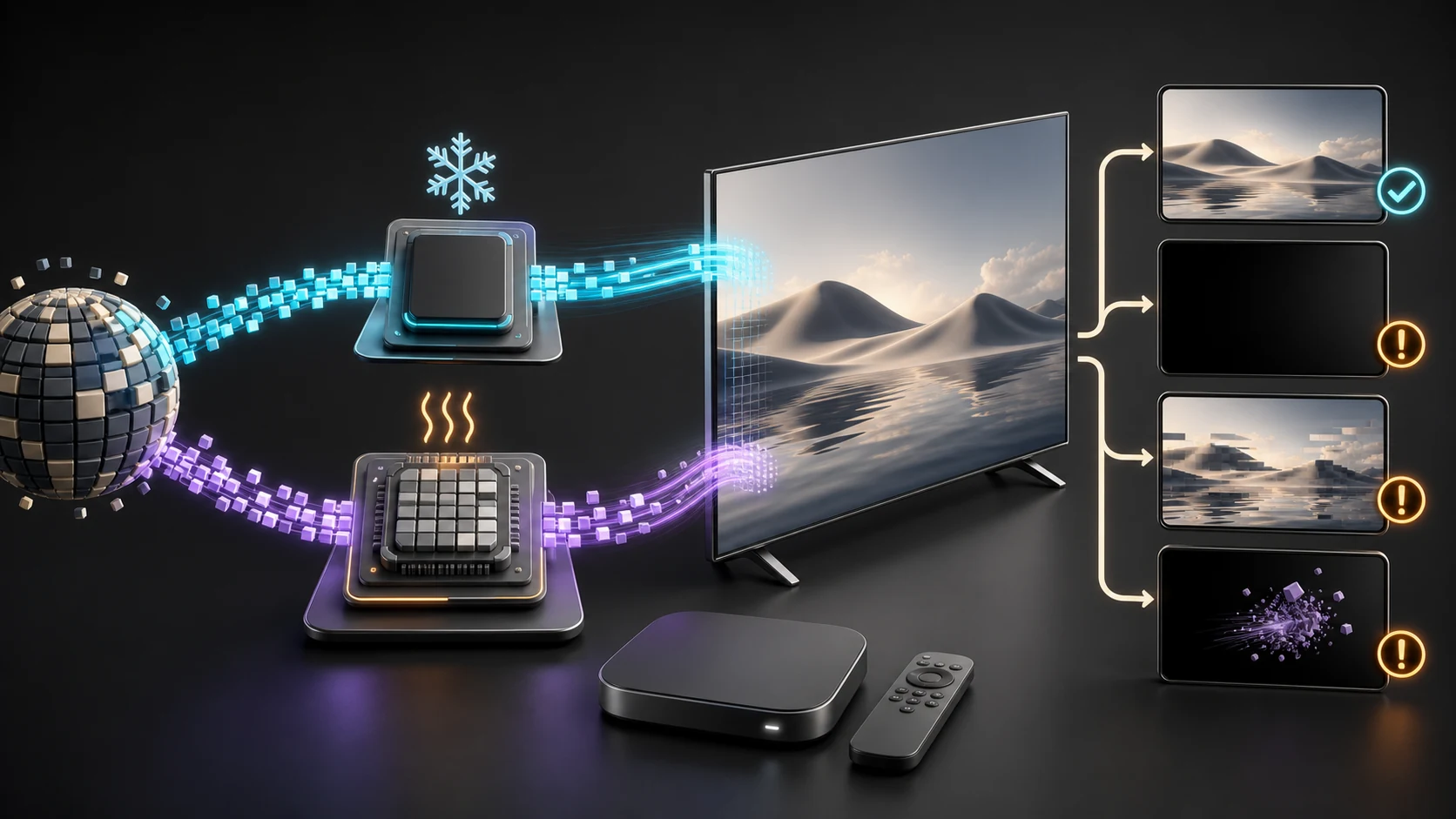
A video arrives at the player in a compressed format. The decoder turns that compressed data into the pictures shown on the television. With hardware decoding, a dedicated part of the device’s chip handles much of that work. With software decoding, the player asks the general-purpose processor to do more of it.
That distinction matters because streaming devices do not all support the same codecs, profiles, resolutions and frame rates. Amazon’s own Fire TV device specifications, for example, show meaningful differences between generations. A newer model may handle HEVC or AV1 in hardware while an older stick has a narrower set of supported formats. Two people using the same player can therefore get different results without either person configuring it incorrectly.
The decoder only affects the playback stage. It does not choose the channels, improve the source server, create an EPG or make a slow internet route faster. This boundary is important because many wasted troubleshooting sessions begin with the wrong question. If categories never load, the decoder has not started working yet. If playback starts and then the picture fails, decoder testing becomes more relevant.
Hardware vs Software Decoder for IPTV at a Glance
| What you notice | Best first choice | Why |
|---|---|---|
| Normal HD or 4K playback | Hardware or Auto | Usually more efficient and easier on compact devices |
| Sound plays but picture is black | Test Software | May bypass a hardware codec compatibility problem |
| Video stutters and the device becomes hot | Hardware | Software decoding may be overloading the CPU |
| App closes as soon as one stream opens | Test the other decoder once | A playback-path fault is possible, but storage and memory also matter |
| Login fails or playlist will not import | Neither | The decoder is not involved at this stage |
| Only one source fails | Compare another authorized source first | The failed source may be the real difference |
Why Hardware Decoding Is Usually the Better Default
A streaming stick or television has limited space for cooling and limited processing power compared with a desktop computer. Hardware decoding is designed around that reality. When the codec is supported properly, it can play demanding video while using less general CPU time. Menus stay responsive, the device tends to run cooler, and other background work is less likely to interrupt playback.
This advantage becomes more noticeable with high-resolution or high-frame-rate video. A common 1080p stream may work either way, yet a 4K HEVC stream can place much more pressure on software decoding. Hardware is therefore the logical starting point on Firestick, Android TV boxes and Smart TVs.
Still, “hardware supported” does not mean “every file will work.” Codec name alone is not the whole story. Profile, level, bit depth, audio format and the way the stream is packaged can all affect compatibility. The app must also use the device’s media system correctly. Amazon explains that Fire TV media apps rely on Android media APIs while the device model determines the available format support. That is why one unusual stream may fail even when hundreds of others play normally.
When Software Decoding Is Worth Trying
Software decoding is best treated as a controlled fallback. It can be more flexible because the app is doing more of the interpretation itself instead of relying on the exact capabilities of the device’s video chip. That flexibility can rescue playback when the hardware path produces a black screen, corrupted blocks, unusual colors or an immediate playback error.
The cost is workload. An older Firestick or entry-level Android box may not have enough CPU headroom to decode demanding video smoothly. The result can be dropped frames, delayed menus, fan noise on larger devices, extra battery drain on phones, heat, or an app that eventually closes. Software is not “higher quality”; it is simply a different route.
Use it when the test has a clear purpose. If a particular authorized stream has sound but no image under Hardware and works under Software, you have learned something useful. If both settings fail in exactly the same way, continuing to toggle them is unlikely to help.
Run a Clean Decoder Test in Five Minutes
1. Choose one repeatable problem
Do not test ten streams at once. Pick one authorized entry that fails in the same way each time. Note whether the issue appears before playback, at the first frame, after several seconds, or only after the device warms up.
2. Confirm that ordinary playback still works
Open a familiar HD entry in the same app. If nothing plays, first check the account, source availability and network. A decoder comparison is most useful when normal playback works but one format or group behaves differently.
3. Change only the decoder
Leave the network, device, player and source unchanged. Switch from Hardware to Software, or the reverse, then reopen the same item. Changing the decoder, VPN, player and Wi-Fi at once may produce a result, but it will not tell you which change mattered.
4. Watch long enough to judge stability
A picture appearing for five seconds is not a complete pass. Watch for two or three minutes. Check lip sync, motion, heat, remote response and whether the app remains open. For sports-like fast motion, frame drops may be easier to notice than in a slow scene, but use content you are authorized to access.
5. Keep the setting that solves the measured problem
If Software restores the picture but creates severe stutter, it has identified a compatibility issue without providing a good long-term solution. In that case, try another trusted player or use a lower-demand version of the content rather than forcing the CPU to struggle every day.
Choose by Symptom, Not by Habit
You hear sound but the screen stays black
This is the clearest reason to compare decoders. Audio proves that at least part of the stream is arriving, while the video path may be failing. Test Software once. If the picture returns, the device’s hardware path may dislike that video’s format. Our IPTV black screen with sound guide covers the other causes, including display mode, app state and source-specific failures.
The picture stutters even though a speed test looks fast
A high speed-test number does not prove the device can decode the current video smoothly. If Software is selected, return to Hardware and compare. Also watch the device rather than only the network: slow menus, heat and delayed remote input point toward local processing pressure. If both decoder modes pause with a loading symbol, the route or source remains a stronger suspect.
The app closes when playback begins
Try the opposite decoder once, especially if the crash happens only with one video type. However, repeated closing can also come from low free storage, a large local playlist database, damaged cache or limited memory. Follow the safer checks in IPTV app keeps closing on Firestick before reinstalling the app and losing saved settings.
4K or HEVC fails while HD works
This pattern often reveals a device capability limit. Hardware decoding should normally be preferred for demanding formats, but an old device may not support the exact profile being used. Software might open it, yet performance may be poor. A better answer can be a compatible HD version or newer hardware, not a permanent software workaround.
Audio and picture slowly move out of sync
A decoder change can alter timing, so it is a reasonable comparison. Nevertheless, audio output mode, Bluetooth delay, frame-rate matching and the source itself can cause the same symptom. Use the IPTV sound and audio sync guide if the timing problem remains across decoder modes.
Best Setting by Device Type
Firestick and Fire TV
Use Hardware or Auto first. Fire TV models differ significantly, so advice from someone with a different generation may not transfer. On an older stick, software decoding can create more heat and frame drops. If the player provides separate settings for live video and VOD, change only the category that has the problem.
Android TV and Google TV boxes
Hardware remains the normal choice, but box quality varies widely. A well-supported certified device may behave differently from an inexpensive box using the same Android version. Test the built-in player first; then compare another reputable player if one codec keeps failing. The best IPTV app comparison explains how player engines, interface design and device support differ.
Smart TV apps
Many Smart TV players do not expose a decoder switch. The app uses the television’s supported playback path automatically. If only one format fails, compare another player available in the TV’s official app store. When every player has the same limit, the television’s codec support is a more likely constraint.
Phones, tablets, Windows and Mac
Modern phones and computers often manage acceleration automatically. Hardware decoding usually saves battery and CPU power. Software remains useful for compatibility testing, especially on a computer with more processing headroom, but it may drain a mobile battery quickly. On Apple devices, the chosen app and Apple’s supported media frameworks largely determine what options are visible.
Do You Need Different Settings for Live TV and VOD?
Possibly. Some players offer separate decoder controls because live video and on-demand files do not always arrive in the same form. Live playback is continuous and may be less forgiving of timing changes, whereas a movie file can use a different codec, frame rate or audio track. A setting that fixes one category can therefore make another category worse.
Keep the scope narrow. If live HD works on Hardware but one VOD title has a black picture, change only the VOD decoder when the app allows it. Do not replace a reliable global setting to accommodate one unusual file. Conversely, if every recent VOD item shows the same failure, the repeated pattern makes a separate VOD setting worth testing.
This is also why comparisons from forums need context. “Use Software” may have solved one person’s older television, one app version and one video format. It is not a universal answer to hardware vs software decoder for IPTV. Device model, player version and the exact point of failure matter more than the popularity of the recommendation.
Decoder Setting or a Different Player?
Changing a decoder is a narrow test. Changing the player replaces more of the playback chain: the media engine, buffering behavior, subtitle handling, audio output and sometimes the way credentials or playlists are parsed. That wider change can help, but it also makes diagnosis less precise.
Start with the decoder when one app already works well except for a specific picture problem. Compare a second trusted player when both decoder modes fail, the app does not offer a choice, or software decoding is too demanding. Avoid installing modified “premium unlocked” apps; they add a security risk and make normal troubleshooting harder.
Problems a Decoder Cannot Fix
- Authorization failed: verify the username, password, protocol, server address and account status.
- Playlist will not import: check the URL format and whether the source is reachable.
- Works on a phone hotspot but not home Wi-Fi: investigate DNS, router, ISP routing or a network block.
- EPG is missing: refresh the guide source and check its mapping; video decoding does not create schedule data.
- One entry is unavailable everywhere: the source may be offline or no longer available.
- Frequent loading circles in every app: compare another network and a known-good authorized source before blaming the decoder.
A Useful Message to Send Support
“Playback works in HD on my device, but one authorized HEVC item has sound with a black picture. It fails on Hardware and displays correctly on Software, although Software stutters after two minutes. The same result occurs after restarting the app. Please confirm whether a compatible version is available. I have not included my password.”
This message is useful because it reports a controlled comparison. It also avoids exposing login credentials. Support can now distinguish a likely format issue from a broad “IPTV is not working” complaint.
Frequently Asked Questions
Is hardware decoder better for IPTV?
Usually, yes. Hardware decoding is normally more efficient and is the best default for streaming sticks, Smart TVs and Android TV devices. Software is valuable as a fallback when a specific format fails.
Does software decoder reduce buffering?
Not when the pause is caused by the internet route or source. It may make motion smoother if the hardware path is mishandling the video, but it can also create stutter by loading the CPU.
Which decoder should I use on Firestick?
Start with Hardware or Auto. Try Software only for a repeatable picture or codec problem. Older Firesticks are more likely to struggle with software decoding.
Why does hardware decoder show a black screen?
The stream may use a codec profile, bit depth or packaging method that the device’s hardware path does not handle correctly. App bugs and display settings can produce a similar symptom.
Why does software decoder make my device hot?
Software decoding moves more work to the general processor. Compact streaming hardware has limited cooling, so demanding video can increase heat and reduce responsiveness.
What does Auto decoder mean?
Auto lets the player choose its preferred playback path based on the device and video. In a well-designed app, it is a sensible everyday setting. Manual selection is mainly for troubleshooting.
Can changing decoder fix audio delay?
Sometimes, because the two paths can handle timing differently. If the delay remains, check Bluetooth, audio passthrough, frame-rate matching and the source.
The Setting to Keep
The right answer in the hardware vs software decoder for IPTV debate is not a permanent winner. Hardware is the efficient default. Software is the compatibility test. Use one repeatable stream, change one setting, and judge picture, sound, heat and stability for several minutes. Once the problem is understood, keep the least demanding setting that plays reliably.
If neither mode works, move one step outward: compare a trusted player, another authorized source or another device. That sequence produces a useful diagnosis without random resets, unnecessary purchases or exposing account details.